

CapCut vs KineMaster: Which Video Editor Is Better in 2026?
Choosing between CapCut and KineMaster can get confusing fast.
Both apps can edit videos, add effects, use transitions, and help you create content from your phone. But they are not built for the same type of editor. Pick the wrong one, and your editing process can feel slow, messy, or harder than it needs to be.
CapCut is better if you want quick edits, auto captions, trendy templates, AI tools, and fast social media videos. KineMaster is better if you want more manual control, layers, chroma key, keyframe animation, and detailed mobile editing.
In this CapCut vs KineMaster comparison, we will break down their features, strengths, weaknesses, best use cases, and final winner so you can choose the right video editing app for 2026.
CapCut vs KineMaster: Quick Comparison
| Feature | CapCut | KineMaster |
| Best For | Fast social media editing | Detailed mobile editing |
| Main Strength | AI tools, captions, templates, effects | Layers, chroma key, keyframes, manual control |
| Ease of Use | Easier for beginners | Slightly more advanced |
| Best Users | TikTok, Reels, Shorts creators | YouTubers, tutorial creators, mobile editors |
| Templates | Better for trending short videos | Good, but more editing-focused |
| Captions | Strong auto caption tools | Good caption tools, more manual control |
| Chroma Key | Available, easier for quick edits | Stronger for green screen control |
| Layers | Good for basic edits | Stronger layer-based editing |
| AI Tools | Very strong for quick editing tasks | Improving, but still more manual-focused |
| Editing Style | Fast and creator-friendly | Controlled and project-based |
| Best Choice | Beginners and social creators | Advanced mobile editors |
Quick answer: Choose CapCut if you want fast, easy, social media editing. Choose KineMaster if you want more control over layers, green screen work, and detailed mobile projects.
What Is CapCut Best For?
CapCut is best for creators who want to make videos quickly without learning complex editing software. It is especially useful for short-form content where speed, captions, effects, and templates matter.
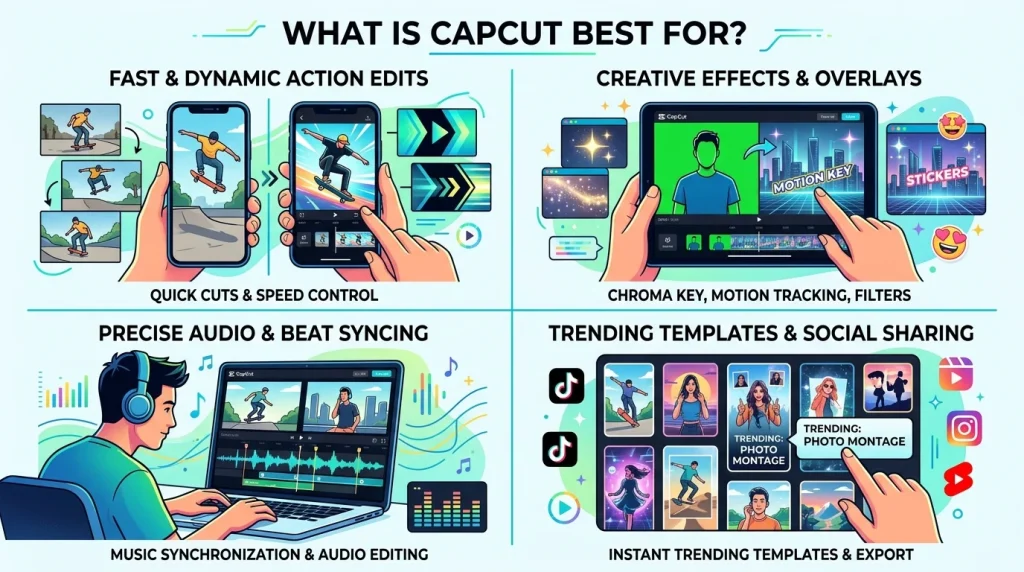
If you create TikTok videos, Instagram Reels, YouTube Shorts, vlog clips, tutorials, or talking-head videos, CapCut gives you a smooth editing workflow. You can trim clips, add music, insert captions, apply effects, remove backgrounds, use templates, and export content for social platforms.
The biggest strength of CapCut is speed. You can go from raw footage to a finished video without spending too much time on manual editing.
CapCut Is Best For
- TikTok videos
- Instagram Reels
- YouTube Shorts
- Fast mobile edits
- Auto captions
- Trend-based templates
- Background removal
- Beginner-friendly editing
- Creator-style videos
What Is KineMaster Best For?
KineMaster is best for creators who want more manual control while still editing on a phone or tablet.
It is a stronger choice for projects that need layers, chroma key, keyframe animation, overlays, audio control, and more detailed timeline work. If you create YouTube videos, tutorials, educational videos, gaming edits, reaction videos, or green screen projects, KineMaster gives you more room to build a polished edit.
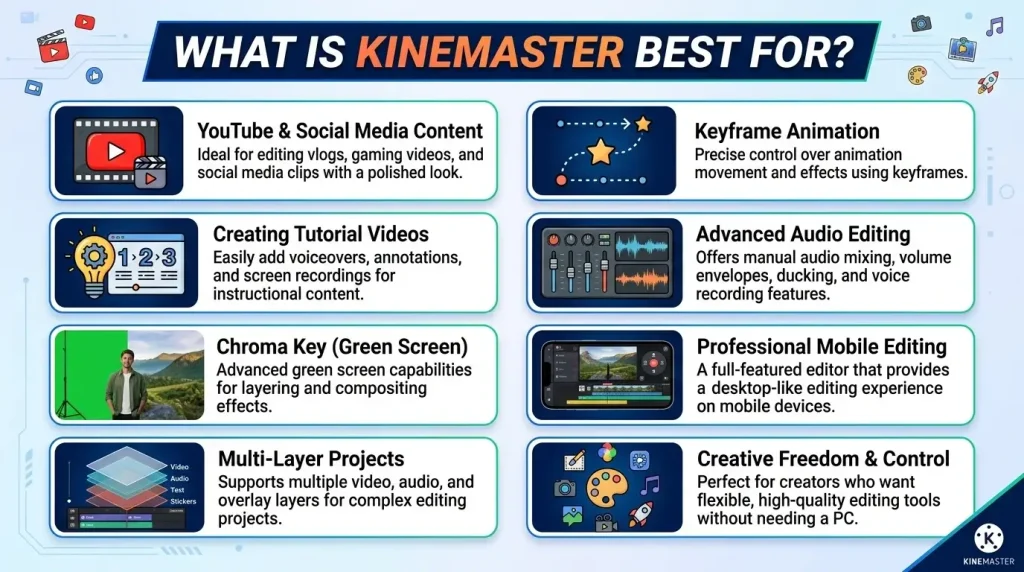
KineMaster can take longer to learn than CapCut, but that extra control is useful when your videos need more structure and precision.
KineMaster Is Best For
- YouTube videos
- Tutorial videos
- Green screen editing
- Layer-based projects
- Keyframe animation
- Manual audio control
- Advanced mobile editing
- Creators who want more editing freedom
CapCut vs KineMaster: Feature-by-Feature Comparison
Ease of Use
CapCut is easier for beginners. The interface feels modern, clean, and built around fast editing. Most tools are simple to find, and many features work with just a few taps.
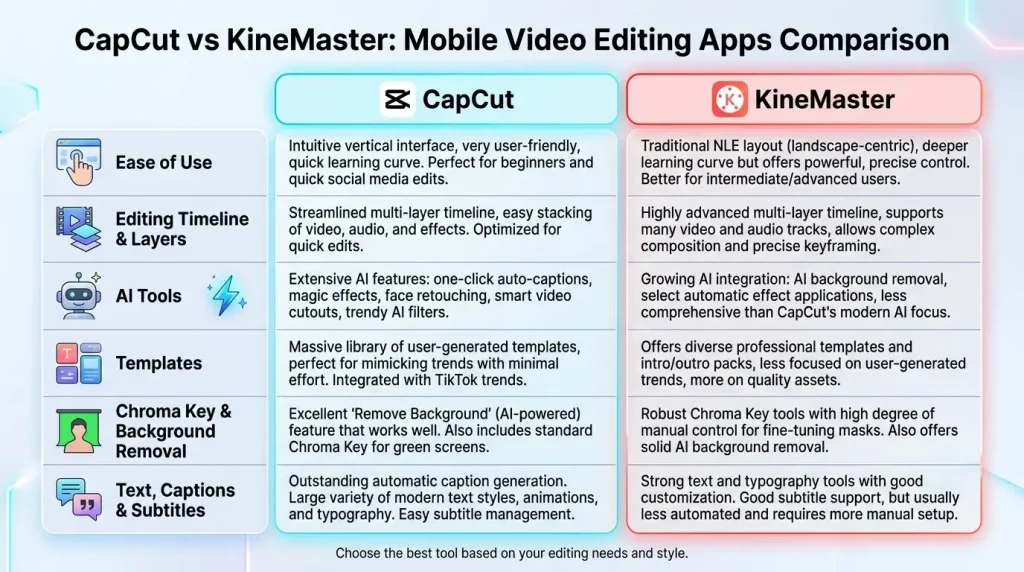
KineMaster is still beginner-friendly, but it has more editing controls. That makes it slightly harder at first. You need to understand layers, timeline structure, keyframes, and manual adjustments to get the best results.
If you are new to editing and want quick results, CapCut is easier. If you want to learn deeper mobile editing, KineMaster gives you more control.
Winner: CapCut for beginners. KineMaster for users who want more control.
Editing Timeline and Layers
CapCut is great for simple timelines. You can split clips, trim footage, add music, place text, use overlays, apply transitions, and finish short videos quickly.
KineMaster is stronger for layer-based editing. It gives more control over video layers, image layers, text layers, stickers, effects, and audio tracks. This matters when you are building a more complex project instead of making a quick social clip.
For short videos, CapCut feels faster. For detailed mobile projects, KineMaster feels more flexible.
Winner: KineMaster.
AI Tools
CapCut is stronger for AI-assisted editing. It is known for tools like auto captions, background removal, text-to-speech, motion tracking, and other quick editing features that help creators save time.
KineMaster also includes AI tools, but its main strength is still manual editing. It gives creators more direct control over how the edit looks and moves.
If you want the app to speed up editing tasks for you, CapCut is the better option. If you prefer to adjust things yourself, KineMaster may feel better.
Winner: CapCut.
Templates
CapCut is better for trending templates. If you want to create TikTok edits, Reels, Shorts, music-based videos, or viral-style content, CapCut templates can save time.
KineMaster also offers templates and assets, but its real strength is customization. It is better for creators who want to build their own style instead of relying on ready-made trends.
Choose CapCut for quick template-based content. Choose KineMaster if you want more control over the final result.
Winner: CapCut for trends. KineMaster for customization.
Chroma Key and Background Removal
CapCut is useful for quick background removal and simple chroma key edits. It works well when you want fast results without adjusting too many settings.
KineMaster is stronger for traditional green screen editing. Its chroma key tools give more control, which is useful for YouTube videos, tutorials, reaction content, gaming videos, and creative layered edits.
If you want one-tap background removal, CapCut is easier. If you want better manual green screen control, KineMaster is stronger.
Winner: KineMaster for chroma key. CapCut for quick background removal.
Text, Captions, and Subtitles
CapCut is better for quick captions and subtitle-style editing. If you create talking videos, TikToks, Reels, Shorts, or tutorials, CapCut makes captions easier to add and style.
KineMaster gives more manual text control. You can adjust text layers, animations, positions, and timing with more precision. This is useful when your text needs to be part of a more detailed project.
For fast captions, CapCut wins. For manual text placement and layered titles, KineMaster is strong.
Winner: CapCut for captions. KineMaster for manual text control.
Effects, Filters, and Transitions
CapCut is stronger for trendy effects, filters, and transitions. It is built for creators who want videos that match current social media styles.
KineMaster also has effects and transitions, but they feel more useful when combined with layers, keyframes, and custom edits. Instead of relying only on trends, you can create more controlled visuals.
If your goal is fast social content, CapCut is better. If your goal is custom editing, KineMaster gives more flexibility.
Winner: CapCut for social effects. KineMaster for controlled edits.
Audio Editing
CapCut is good for quick audio editing. You can add music, voiceovers, sound effects, and sync audio with social video content.
KineMaster gives stronger manual audio control. It is useful when you need to adjust voice levels, background music, sound effects, and multiple audio elements in a more detailed project.
For TikTok and Reels, CapCut is enough for most users. For YouTube videos and tutorials, KineMaster can be more practical.
Winner: KineMaster.
Export Quality and Watermark
Both apps can export high-quality videos, but watermark and premium feature rules can change depending on the app version, platform, region, and plan.
CapCut usually gives strong free editing value, but some advanced tools, effects, templates, or Pro features may require paid access.
KineMaster’s free version may include limits or watermark-related restrictions, while premium plans usually unlock more professional options.
Before publishing important content, always check the current export settings inside the app.
Winner: CapCut for easier free use. KineMaster for paid users who want more control.
Performance on Low-End Devices
Performance depends on your phone, video quality, project size, and number of effects.
CapCut can feel heavy when using AI tools, effects, templates, and high-resolution exports. KineMaster can also slow down when you use many layers, overlays, and animations.
For simple edits, both apps work well. For complex projects, use fewer effects, compress large files when needed, and avoid too many layers on low-end devices.
Winner: Tie.
CapCut Pros and Cons
CapCut Pros
- Easy for beginners
- Great for TikTok, Reels, and Shorts
- Strong auto caption tools
- Useful background remover
- Trend-based templates
- Good effects and transitions
- Fast mobile editing workflow
- Strong for quick social content
CapCut Cons
- Less manual control than KineMaster
- Some tools may require Pro access
- Can feel template-heavy
- Not ideal for complex layered projects
- Advanced edits may become harder to manage
KineMaster Pros and Cons
KineMaster Pros
- Strong layer-based editing
- Good chroma key tools
- Keyframe animation support
- Better manual control
- Useful for YouTube and tutorials
- Strong timeline flexibility
- Good for detailed mobile editing
- Asset store with effects, music, stickers, and fonts
KineMaster Cons
- Slightly harder for beginners
- Free version may include restrictions
- Fewer trend-style templates than CapCut
- Takes more time for quick social edits
- Heavy projects may lag on weaker devices
CapCut vs KineMaster for Different Users
Best for TikTok Creators
CapCut is the better choice for TikTok creators. It is faster, easier, and better suited for short-form trends, captions, effects, and music-based edits.
Winner: CapCut.
Best for Instagram Reels
CapCut is better for quick Reels, trending transitions, captions, and fast edits. KineMaster is better if your Reels need custom overlays, layered editing, or green screen work.
Winner: CapCut for most Reels. KineMaster for custom edits.
Best for YouTube Videos
KineMaster is better for YouTube videos because it gives more control over layers, audio, text, and timeline editing. This is useful for tutorials, commentary, gaming clips, and longer mobile edits.
CapCut can still work for YouTube Shorts and simple videos, but KineMaster is stronger for structured projects.
Winner: KineMaster.
Best for Beginners
CapCut is easier for beginners. Its tools are simpler, and many features are designed for quick results.
KineMaster is not too difficult, but it requires more time to understand layers, keyframes, and manual edits.
Winner: CapCut.
Best for Green Screen Editing
KineMaster is better for green screen editing because its chroma key tools offer more manual control.
CapCut is better when you want quick AI background removal without setting up a green screen.
Winner: KineMaster for green screen. CapCut for quick background removal.
Best for Professional Mobile Editing
KineMaster is better for professional-style mobile editing. It gives more control over layers, audio, keyframes, chroma key, and timeline structure.
CapCut is better for fast creator content, but KineMaster is stronger when you want a more detailed edit.
Winner: KineMaster.
Best for Fast Edits
CapCut is better for fast edits. You can create short videos, add captions, use templates, apply effects, and export quickly.
KineMaster can do quick edits too, but it is more useful when you want to spend extra time customizing the project.
Winner: CapCut.
Which App Should You Choose?
Choose CapCut If…
Choose CapCut if you want a fast, simple, and beginner-friendly video editor for social media.
CapCut is the better choice if:
- You make TikTok videos
- You create Instagram Reels
- You edit YouTube Shorts
- You want auto captions
- You like templates and trends
- You need quick background removal
- You want fast mobile editing
- You are new to video editing
Choose KineMaster If…
Choose KineMaster if you want deeper mobile editing control.
KineMaster is the better choice if:
- You edit YouTube videos
- You use green screen
- You need layer-based editing
- You want keyframe animation
- You prefer manual control
- You make tutorials or educational videos
- You work with multiple audio and video layers
- You want more detailed mobile projects
Final Verdict: Is CapCut or KineMaster Better in 2026?
CapCut is better for most beginners and social media creators. It is faster, easier, and better for TikTok, Instagram Reels, YouTube Shorts, captions, templates, effects, and quick edits.
KineMaster is better for creators who want more control. It is stronger for layer-based editing, chroma key, keyframes, manual audio control, YouTube videos, tutorials, and serious mobile editing.
The best choice depends on your editing style.
If you want speed, choose CapCut.
If you want control, choose KineMaster.
Conclusion
CapCut and KineMaster are both strong video editing apps, but they serve different creators.
CapCut is the better option if you want easy editing, fast social videos, AI tools, captions, and templates. KineMaster is the better option if you want layers, chroma key, keyframes, and more manual control over your edits.
For TikTok, Reels, Shorts, and beginner-friendly editing, CapCut is the smarter pick. For YouTube videos, green screen projects, tutorials, and advanced mobile editing, KineMaster gives you more flexibility.
Choose the app that matches the way you actually edit, not the one with the longest feature list.