

CapCut vs Canva: Pick the Right Free Video Editor in 2026
Choosing between CapCut and Canva sounds simple until you start editing.
One tool gives you stronger video controls, captions, effects, and short-form editing features. The other makes it easier to create clean, branded, professional-looking content without spending hours designing from scratch. Pick the wrong one, and you may waste time fighting the editor instead of finishing your video.
That is why this CapCut vs Canva comparison matters.
In this guide, we break down which free video editor is better for TikTok, Instagram Reels, YouTube Shorts, business videos, templates, branding, beginners, and everyday content creation. By the end, you will know whether CapCut or Canva is the better choice for the kind of videos you actually want to make.
CapCut vs Canva: Quick Comparison
| Feature | CapCut | Canva |
| Best For | Video-first editing | Design-first video creation |
| Main Strength | Short-form videos, captions, effects, transitions | Templates, branding, social graphics, marketing videos |
| Best Users | TikTok, Reels, Shorts, vlog, and mobile creators | Businesses, marketers, creators, educators, and brands |
| Ease of Use | Easy, but has more editing tools | Very easy and beginner-friendly |
| Templates | Strong for trending video templates | Strong for branded and social media templates |
| Text Tools | Better for captions and subtitle-style editing | Better for designed text layouts |
| AI Tools | Strong for video editing tasks | Strong for design and content creation |
| Branding | Basic compared with Canva | Strong brand kit and design consistency |
| Mobile Editing | Very strong | Good, but more design-focused |
| Desktop Editing | Available online and on desktop | Strong web-based editor |
| Best Free Use | Social videos and quick edits | Branded videos and simple visual content |
What Is CapCut Best For?
CapCut is best for creators who want to edit videos quickly and directly. It works especially well for short-form content such as TikTok videos, Instagram Reels, YouTube Shorts, Facebook videos, and mobile-first edits.
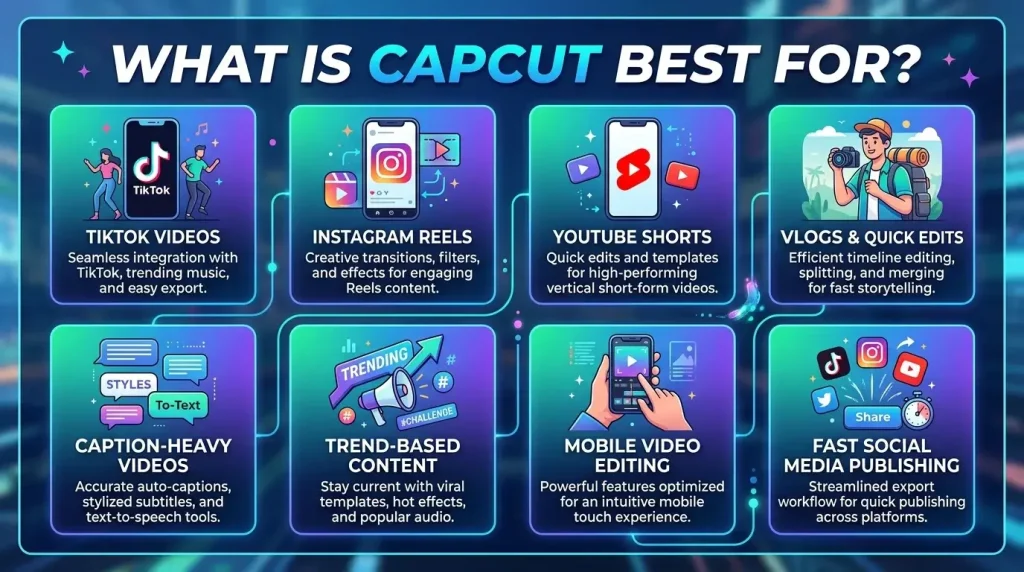
Its biggest strength is that it feels like a real video editor, not just a design tool with video features added. You can cut clips, adjust speed, add captions, use effects, apply transitions, remove backgrounds, add voiceovers, and create polished social videos without needing professional editing software.
CapCut is a better choice if your main focus is movement, timing, sound, captions, and visual effects.
CapCut Is Best For
What Is Canva Best For?
Canva is best for people who want videos that look clean, branded, and professionally designed without learning complex editing tools.
Canva works well for business promos, product videos, social media posts, presentations, educational content, ads, thumbnails, carousels, and simple animated videos. Its strength is not advanced video editing. Its strength is visual design.
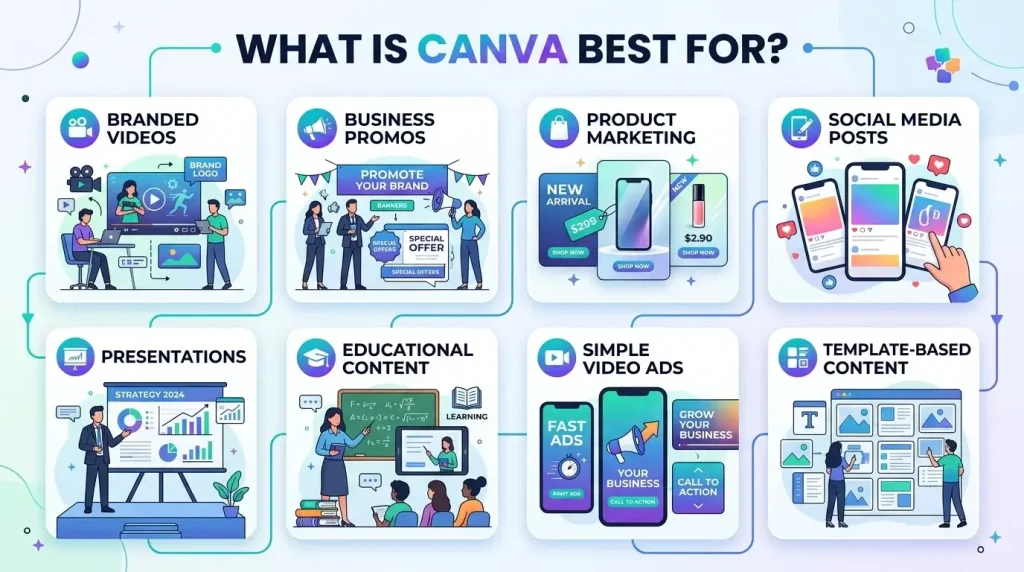
If you care about logos, colors, fonts, layouts, brand consistency, templates, and easy drag-and-drop editing, Canva is often the better choice.
Canva Is Best For
CapCut vs Canva: Feature-by-Feature Comparison
Ease of Use
Both CapCut and Canva are beginner-friendly, but they feel different.
CapCut is easy if you already understand basic video editing. You work with clips, timelines, audio, captions, transitions, and effects. It may take a little time to learn all the tools, but the editing flow is natural for video creators.
Canva is easier for complete beginners. You choose a template, drag elements around, change text, add photos or videos, and export. It feels more like designing a social media post than editing a traditional video.
Winner: Canva for complete beginners. CapCut for people who want real video editing control.
Video Editing Tools
CapCut has stronger video editing tools. It gives you more control over clips, timing, speed, motion, captions, sound, effects, and background editing. If you want to create a fast-paced short video, CapCut usually gives you more flexibility.
Canva can edit videos too, but its tools are simpler. You can trim clips, add transitions, use animations, insert music, place text, and create clean visual layouts. That is enough for many users, but not ideal for detailed editing.
Winner: CapCut.
Templates
Both platforms offer templates, but they serve different goals.
CapCut templates are usually made for short-form video trends. They are useful for TikTok edits, Reels, Shorts, quick transitions, music-based videos, and viral-style content.
Canva templates are better for branded content. You can create product promos, business videos, social media ads, course content, presentations, and marketing posts with a consistent look.
Winner: CapCut for trending video templates. Canva for branded templates.
AI Features
CapCut is stronger for AI video editing tasks. It is useful for captions, background removal, text-to-speech, and other video-focused tools that help creators speed up production.
Canva is stronger for AI-assisted design and content creation. It helps with layouts, visual assets, text, presentations, image editing, and brand-friendly content.
The better option depends on what you want AI to do. For editing a video, CapCut is usually better. For designing content around a video, Canva is stronger.
Winner: CapCut for video AI. Canva for design AI.
Captions and Text Tools
CapCut is better for captions because it is built around video editing. If you create talking-head videos, tutorials, TikToks, Reels, or Shorts, captions are easier to manage inside CapCut.
Canva has strong text design tools. It is better when you want your text to look polished, branded, and visually arranged. It works well for title slides, promo videos, quotes, educational clips, and product messages.
Winner: CapCut for captions. Canva for designing text.
Effects, Filters, and Transitions
CapCut has more video-style effects and transitions. It is better for motion-based edits, fast cuts, short-form trends, and creator-style content.
Canva has animations and transitions, but they are more subtle and design-focused. They work well for business videos, presentations, and clean social media posts.
Winner: CapCut for creative video effects. Canva for clean design animations.
Branding and Design Tools
This is where Canva wins clearly.
Canva is built for design consistency. You can use brand colors, logos, fonts, templates, layouts, and visual elements across different types of content. This makes it useful for businesses, Etsy sellers, coaches, agencies, educators, and social media managers.
CapCut can create good-looking videos, but it is not as strong for brand systems, visual identity, and multi-format content design.
Winner: Canva.
Mobile and Desktop Experience
CapCut is excellent for mobile editing. It feels natural on a phone and works well for creators who shoot, edit, and publish from the same device.
Canva works well on both desktop and mobile, but it is especially strong in the browser. If you create content from a laptop or manage multiple designs, Canva feels more organized.
Winner: CapCut for mobile video editing. Canva for browser-based content creation.
Free Plan and Export Options
Both CapCut and Canva offer free access, but their free tools are not the same.
CapCut’s free value is strong for video editing, especially if you need short-form tools, captions, effects, and mobile editing. Some advanced tools, premium assets, or Pro features may depend on your region, device, or current plan.
Canva’s free plan is strong for templates, simple videos, social graphics, and design layouts. Some premium templates, stock assets, brand tools, and advanced features may require Canva Pro.
Before creating client work or business content, always check export settings, watermark rules, premium assets, and license terms inside the tool you are using.
Winner: CapCut for free video editing. Canva for free design-based content creation.
CapCut vs Canva for Different Users
CapCut vs Canva for TikTok Creators
CapCut is the better choice for TikTok creators. It is made for fast, vertical, short-form video editing. Captions, effects, transitions, trending templates, speed controls, and audio-based editing are easier to manage.
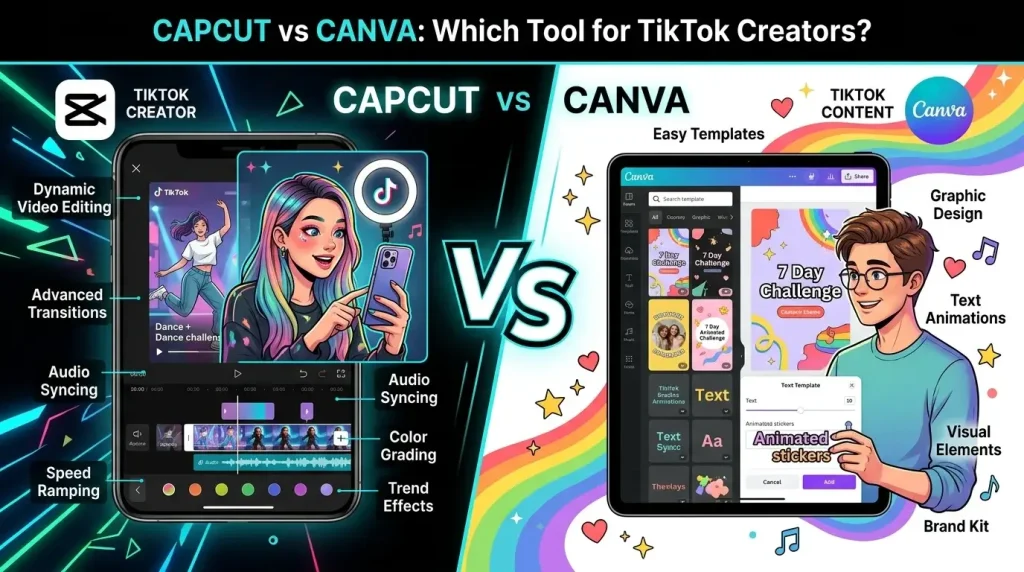
Canva can create TikTok videos, but it is better for polished brand-style clips rather than fast creator edits.
Best choice: CapCut.
CapCut vs Canva for Instagram Reels
CapCut is better for Reels that need strong editing, movement, transitions, captions, and music timing.
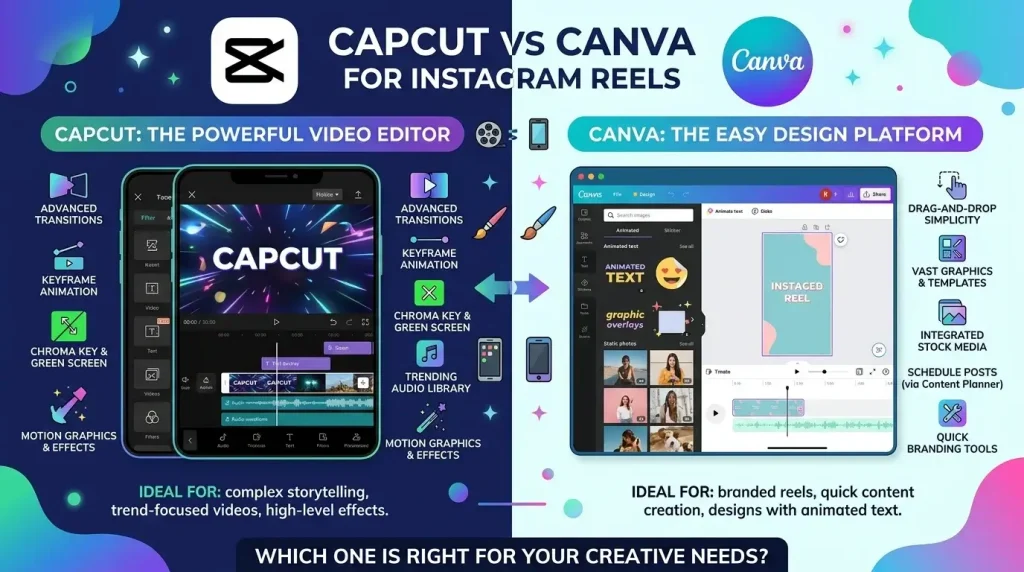
Canva is better for branded Reels, product promos, quote videos, educational posts, and business content. If you run a small business or personal brand, Canva can help your Reels look more consistent.
Best choice: CapCut for creator Reels. Canva for branded Reels.
CapCut vs Canva for YouTube Shorts
CapCut is better for editing YouTube Shorts because it gives more control over timing, captions, effects, and sound.
Canva can still be useful for Shorts if your video is simple, educational, or template-based. For example, a quick tip video, product highlight, or text-based explainer can work well in Canva.
Best choice: CapCut for most Shorts.
CapCut vs Canva for Small Businesses
Canva is usually better for small businesses. It helps you create videos that match your brand, product style, fonts, colors, and social media identity.
CapCut is useful when the business wants more dynamic short-form videos, behind-the-scenes edits, product demos, or talking-head clips.
Best choice: Canva for brand consistency. CapCut for dynamic video edits.
CapCut vs Canva for Beginners
Canva is easier for total beginners because the editor is simple and template-driven. You can create a clean video even if you have never edited before.
CapCut is still beginner-friendly, but it has more video editing tools. That makes it slightly more complex, but also more powerful.
Best choice: Canva for absolute beginners. CapCut is for beginners who want to learn video editing.
CapCut vs Canva for Branded Content
Canva is the better tool for branded content. Its templates, fonts, colors, layouts, and design tools make it easier to keep your content visually consistent.
CapCut can make attractive videos, but it is less focused on brand systems and more focused on editing clips.
Best choice: Canva.
CapCut Pros and Cons
CapCut Pros
CapCut Cons
Canva Pros and Cons
Canva Pros
Canva Cons
Which One Should You Choose?
Choose CapCut if your main goal is to edit videos.
It is better for TikTok, Reels, YouTube Shorts, captions, transitions, effects, background editing, mobile editing, and creator-style videos.
Choose Canva if your main goal is to design content that includes video.
It is better for brand videos, product promos, presentations, social media posts, ads, educational content, and marketing materials.
The simplest answer is this:
CapCut is better for video editing. Canva is better for branded video design.
Final Verdict: Is CapCut or Canva Better in 2026?
CapCut is the better free video editor for creators who focus on short-form content. If you edit TikToks, Reels, Shorts, vlogs, or caption-heavy videos, CapCut gives you stronger editing tools and more video-first control.
Canva is better for users who care more about design, branding, templates, and business content. If you create social posts, product videos, presentations, educational clips, or marketing videos, Canva is more practical.
Neither tool is better for everyone. The right choice depends on your goal. If you want to edit videos, choose CapCut. If you want to design branded content with video, choose Canva.
Conclusion
CapCut and Canva are both useful, but they solve different problems.
CapCut helps you edit videos faster and with more creative control. Canva helps you create clean, branded, template-based content without design experience.
For most social media creators, CapCut is the stronger video editor. For business owners, marketers, educators, and brand-focused creators, Canva is the smarter choice.
The best option is the one that matches your content style, not the one with the longest feature list.